Beginning Web Design
Make a Website
Navigation:
Home
Make a Plan
6. Visualize
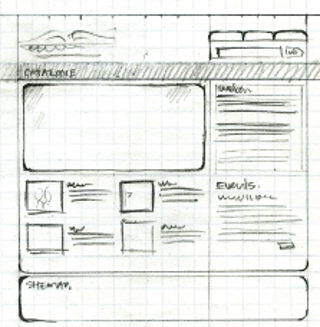
You're almost ready to start producing, but first, grab a pad of paper and start sketching. Draw a couple pictures of what you want
your website to look like - think about the placement of content and aesthetic elements like color, always keeping in mind what
will be usable and aid the over-all goal of the site. Your sketch may look like a set of boxes or rectangles: one for the header,
one for navigation, one for the body, one for each image, etc. Imagining things in box-form will be helpful once you start coding.
7. Here Comes the Content
Now it's time to create, collect, and otherwise establish your content. You should already have a very good idea of what this content
is going to be, so now it's just about producing. Text, images, links, citations, etc. are all included in your content. This process
could be very long if you're starting from scratch, or very short if you are just amassing already-written content. Either way, be thorough,
but keep in mind that your content will probably change as you begin coding.
8. Coding With XHTML
Finally, it is time to begin coding. Learning XHTML and CSS is a pretty big undertaking, and this website isn't capable of giving an exhaustive
tutorial. However, we will offer the basics to get you started, as well as a plethora of links to sites that CAN take you step-by-step through
the entire process.
XHTML is the code that is used to make your content appear on the page. An XHTML document will include some code right at the top that establishes
the web page, and the rest of the code will basically just be telling your content to show up through a number of different triggers or signals.
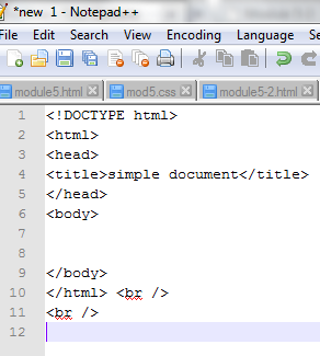
First, you'll need to download Notepad++ for free here. Open Notepad++, and type the code from the first
example image to the right. The rest of your code will go in the space between < body > and < / body >.
Now it's time to start coding your content. Everything that you want to show up on the page must be put inside something called a container.
Look at the second example image to the right for some examples of containers. This image also shows an example of a container being used to create a
paragraph. You begin a paragraph with the p container, then type the text that you want to appear - in this case, that text is
"Hello! How are you?" Then you end the paragraph with another p container which includes a forward slash. You must always open AND close your containers,
and when closing, always include a forward slash.
Finally, when you save your code, make sure to save it as an HTML file, or Hyper Text Markup Language file, under "Save as type".
Congratulations! At this point, you are equipped to create a blank web page full of paragraphs...and that's about it. But don't worry, there are countless
online tutorials and guides that will show you how to make ordered and unordered lists, page breaks, bold and italicized text, and lots more. Here are a
couple great XHTML tutorials to take you further:
How to Learn XHTML
XHTML Syntax
9. Audience Testing
We're back to thinking about users. The best way to know if your site is top-notch or not is to get some feedback from your audience. Give the link
to your friends, family, colleagues, professors, and anyone else who is willing to try it out. Ask them to explore your site and then get their responses.
Was it easy to use? Could they find everything? Did they immediately know the purpose or focus of the site? If your friends end up screaming at the screen
like our angry user to the right, you may have some work to do. Collect as much feedback as you can and refer to Garrett's five planes as you start
revising your code to better suit your users.
10. Coding With CSS
CSS, in a word, is what makes things pretty. It's the code that gives you fun colors and stunning typography, and it positions all of your images and
text so that they look perfect. As with HTML, this site will give you a few pointers, and then offer some resources that will give you all the rest.
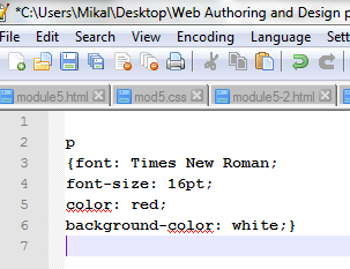
Let's say you want to make some design changes to your paragraphs. In Notepad++, you will type the letter p, and then a pair of curly brackets. All of
your design changes go inside those curly brackets. You can change the font, font-size, color, background-color, and a myriad of other things. If you
want to change the font to Times New Roman, it will look like this: font: Times New Roman. Note the colon between what you want changed (the font) and
how you want it changed (Times New Roman). Check out the CSS example image to your right. And don't forget to save your code as a CSS file, or Cascading
Style Sheets file, under "Save as type". Finally, you'll want to finish with another audience test to see if your design elements go
over well.
Here are some great CSS tutorials:
W3Schools
CSS Basics
Final Thoughts
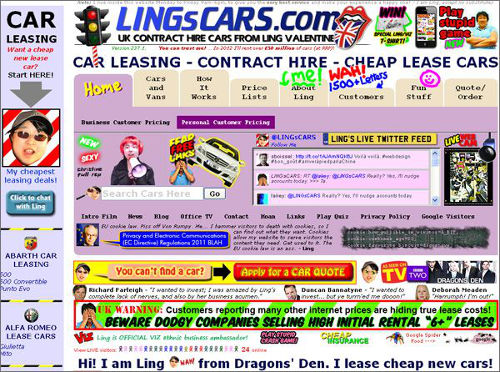
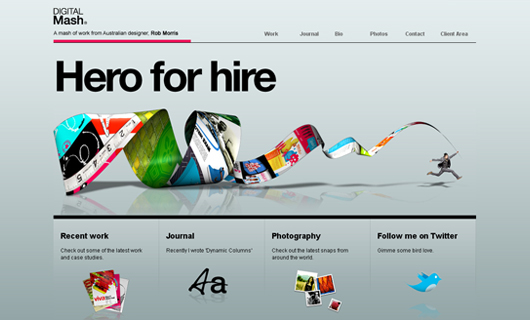
It's time to celebrate, because you've just created your first website! It wasn't even the huge headache you thought it would be. If you've followed our
instructions and taken advantage of other XHTML and CSS resources, your brand new site will hopefully look more like the right-hand image.
If not...time to start over.


by Mikal Cardine
Last Updated: 3/22/2015 Completion Date: 3/25/2015

This work is licensed under a Creative Commons Attribution-NonCommercial-NoDerivatives 4.0 International License.